Looping VFX that never pop
Why looping particle effects pop at the seam, and how to make auras, fires and portals loop seamlessly so the exported GIF or spritesheet plays forever without a jump.
Record a particle effect for two seconds and loop it, and you usually see a jump: at the start of the recording there are no particles yet, but at the end the screen is full. When the loop restarts, everything that was on screen vanishes. That jump is the loop pop.
Three ways to loop
| Mode | What it does | Use it for |
|---|---|---|
| Perfect loop | The simulation is wrapped so frame N equals frame 0 exactly: particles alive at the end continue into the start. | Auras, fires, portals, idle glows, anything that runs continuously. |
| Crossfade | The end of the clip is blended into the start over a set fraction. | Effects that cannot be wrapped exactly, such as long chaotic simulations. |
| One-shot | Plays once from t = 0 and stops. | Explosions, hits, pickups and other events. |
In the studio these are under Effect settings > Timeline and loop > Loop, and the timeline shows the same choice. Every library effect that loops uses Perfect loop.
Make a loop seamless
- Select Effect settings and set Loop to Perfect loop.
- Set Duration to a length the motion fits: slow auras need 2 to 4 seconds, flickering fire 1 to 2.
- Avoid one-off events inside a loop. Bursts that fire once at the start of a looping effect appear as a pop. Use a continuous rate, or bursts that repeat on an interval that divides the duration.
- Keyframe values so the last key equals the first. The keyframe button next to a value (Animate this value over time) adds keys at the playhead.
- Scrub to the end of the timeline and back to 0: in a perfect loop the frames match.
- Export a GIF, APNG or spritesheet. The export follows the same loop setting.

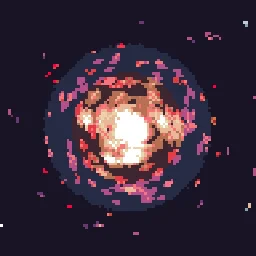
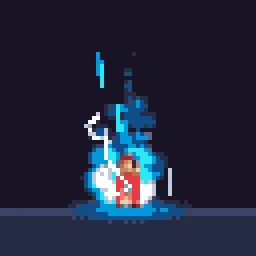
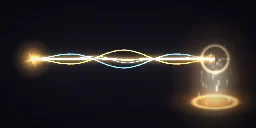
See it in the studio
Open a looping effect, scrub past the end of the timeline and watch it wrap.