Roblox beam textures
Free seamless textures for Roblox Beams: lightning, electric arcs, fire streams, energy, lasers, light shafts and spotlights, with the Beam settings and the Luau to link two parts.
A Beam draws one image as a ribbon between two Attachments. It cannot play a flipbook: it repeats the image end to end along its length and slides it along with TextureSpeed, so the motion comes from the scroll. That makes a beam texture different from a particle flipbook: it is a single still image whose two ends match exactly, so every repeat joins the next with no seam. Lightning, tethers, lasers, fire streams and the shaft of light under a lamp are all beams in most Roblox games.
Seamless beam textures
 Lightning Beam
 Electric Arc Beam
 Fire Stream Beam
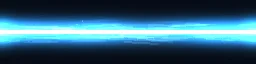 Energy Beam
 Red Laser Beam
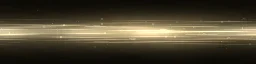 Holy Light Shaft
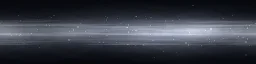 Spotlight Beam
 Tractor Beam
Plasma, water, frost and void beams are in the Beam Textures category too. Press ROBLOX on any of these effect pages for the texture: a 1024 x 256 PNG whose width runs along the beam. In the studio, Export, Roblox picks Beam by itself for these, and lets you choose the moment the still is taken, the texture size and whether it stays in colour or turns white for tinting. Any effect becomes a beam texture the same way: set the canvas to tile left and right, and whatever crosses one end comes back in at the other.
Set up the Beam
- Texture: upload the PNG in the Asset Manager and paste rbxassetid://<id> into the Beam's Texture.
- TextureMode Wrap repeats the texture every TextureLength studs, so the pattern keeps its size however long the beam is.
- TextureLength = Width x 4 for the library's 1024 x 256 textures (the image is four times longer than it is wide). With Width 2, TextureLength is 8. Anything else stretches or squashes the pattern.
- TextureSpeed is texture lengths a second, from Attachment0 toward Attachment1. 1 to 3 suits lightning, fire and energy; light shafts look best slow, around 0.1 to 0.3. Negative runs it backwards.
- LightEmission 1 adds the beam's light to whatever is behind it, for lightning, lasers, energy and light. Use 0 for water and the void beam, which are drawn with normal blending. LightInfluence 0 keeps the beam unlit.
- FaceCamera keeps the ribbon facing the camera, so a bolt never turns edge-on and vanishes.
The ready model (a plan feature) sets all of this: an invisible part with Attachment0 and Attachment1 16 studs apart and the Beam between them, with a README that lists every setting. With the free PNG, add the Beam yourself and use the numbers above.
Link two parts with a beam
Keep one configured Beam (texture set) in ReplicatedStorage and clone it whenever two things should be linked: a staff and its target, a tower and an enemy, a lamp and the floor.
-- LocalScript (or a Script for a beam everyone sees)
local ReplicatedStorage = game:GetService("ReplicatedStorage")
local template = ReplicatedStorage:WaitForChild("LightningBeam") -- a Beam with its Texture set

-- Draws the beam from one part to another; destroys it after `seconds` if given.
local function link(fromPart: BasePart, toPart: BasePart, seconds: number?)
	local a0 = Instance.new("Attachment")
	a0.Parent = fromPart
	local a1 = Instance.new("Attachment")
	a1.Parent = toPart
	local beam = template:Clone()
	beam.Attachment0 = a0
	beam.Attachment1 = a1
	beam.Parent = fromPart
	if seconds then
		task.delay(seconds, function()
			beam:Destroy()
			a0:Destroy()
			a1:Destroy()
		end)
	end
	return beam
end

link(workspace.Tower.Tip, workspace.Enemy.HumanoidRootPart, 0.4)
Getting it to look right
- Flicker: a beam shows one image, but lightning can still flicker. Export two or three textures at different moments (Export, Roblox, Beam, Moment) and swap the Beam's Texture every few frames, or change its Transparency.
- Light shafts and spotlights: set Width0 narrow at the lamp and Width1 wide at the floor, and fade Transparency toward the floor with a NumberSequence.
- One texture, many colours: export with Colour set to White and set the Beam's Color per use (a red laser for one team, blue for the other).
- Curves: CurveSize0 and CurveSize1 bend the beam into an arc, for whips, tethers and lobbed energy. Raise Segments so the curve stays smooth.
The flipbook PNG is free: the ROBLOX button on every effect page needs no account, and a free account can also export it from the studio (3 effects a day) with the grid and texture size of your choice. The ready model, a .rbxmx with the emitter set up and a script that plays it, plus UIFlipbook.luau for UI, comes with any plan, from $7.99 a month.
Get it into your game
Every setting and both ways in, free PNG or ready model, are on the Roblox setup page. More picks by genre are on Free Roblox VFX, and any effect can be changed in the studio before you export it: change the colour or speed of a beam.
Questions
What is a beam texture in Roblox?
A still image for a Beam whose two ends match, so the Beam can repeat it along its length with no visible seam and scroll it with TextureSpeed. Its width runs along the beam and its height across it.
Can a Roblox Beam play a flipbook?
No. A Beam shows one image. Motion comes from TextureSpeed scrolling it, and flicker from swapping the Texture or changing Transparency from a script. For animated flipbooks use a ParticleEmitter.
Why does my beam texture look stretched?
TextureLength does not match the texture's shape. With TextureMode Wrap, set TextureLength to the Width times the image's width divided by its height: Width x 4 for a 1024 x 256 texture.
Why is my beam a plain strip?
The Texture is not set or has not loaded yet. Paste the image id as rbxassetid://<id>; Roblox also reviews new uploads before they show in game.
The beam scrolls the wrong way. How do I flip it?
Make TextureSpeed negative, or swap Attachment0 and Attachment1.
Can I use these effects in a game that earns Robux?
Yes. Exported effects, including ones started from the library, may be used in any project, commercial games included, with no credit required. Reselling the library itself as an effect pack is not allowed.