Easing for game VFX and UI animation
What ease in, ease out, ease in-out, overshoot and hold keys do to game VFX and UI animation, which one fits slams, pop-ins, bobs and anime holds, and how to set them on keyframes in the studio.
Easing is how a value changes speed between two keyframes. A linear move covers the same distance every frame, which looks mechanical because nothing real starts or stops instantly. An ease changes that: the move starts slow and speeds up (ease in), starts fast and settles (ease out), does both (ease in-out), passes its target and settles back (overshoot), or does not move at all until the next key (hold). The timing guide covers how long each beat of an effect should be; easing decides how the motion is spread inside each beat.
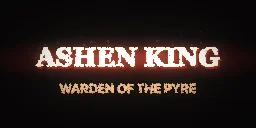 Boss Name Slam
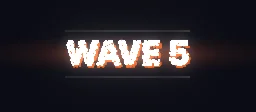 Wave Start Banner
 Battle Transition
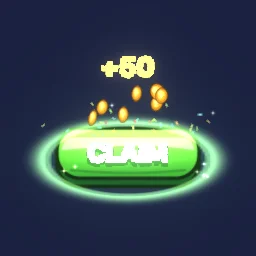 Claim Button
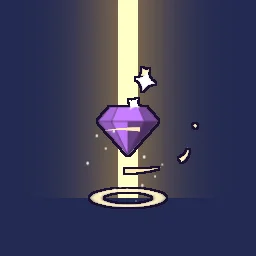 Rare drop sparkle
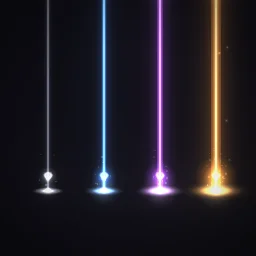 Loot Beams
 Surprised Jolt
The quick way: study a finished effect
Open Boss Name Slam and look at its timeline: the name accelerates into the slam with an ease in, rebounds with an ease out, and the crimson band flares out fast and settles. Or describe a move: build "a quest complete banner that overshoots in" with the agent (uses 1 build; your first one needs no account).
Learn it hands-on: the easing lesson has you ease a loot drop yourself: an ease in on the falling gem, an overshoot on the twinkle, a hold on the landing flash and F9 on the halo.
Which ease for which move
| Ease | What it does | Use it for |
|---|---|---|
| Linear | Constant speed | Spins, scrolling and conveyor motion: anything that never starts or stops in view |
| Ease in | Starts slow, speeds up | Slams, falls, exits, a charge accelerating into a hit |
| Ease out | Starts fast, settles | Arrivals, knock-backs, banners sliding in, rebounds |
| Ease in-out | Slow at both ends | Idle bobs, hovering pickups, breathing glows, slow pans |
| Overshoot | Passes the next key, settles back | UI pop-ins, buttons, cartoon squash and stretch, anything springy |
| Hold | Keeps its value, jumps at the next key | Impact frames, flicker, on-twos timing, stepped counters |
| Custom curve | Two handles, like CSS cubic-bezier | A particular feel the named eases miss |
Eases in the library
- Boss Name Slam: the title scales from 2.24 down to 0.75 in 0.12 s with an ease in, so it hits at full speed, rebounds to 0.82 with an ease out and settles with an ease in-out.
- Battle Transition: each bar slides in over 0.2 s with an ease out, arriving fast and landing softly, holds, then leaves with an ease in, accelerating off the screen. The bars start 0.05 s apart.
- Claim Button: the press goes down 6 px in 0.06 s with an ease in, springs back past its rest position with an ease out, and the idle breathing between presses uses ease in-out.
- Rare Drop Sparkle: the gem bobs 12 px over one second with ease in-out on both keys, the classic hovering pickup.
Set an ease in the studio
- Animate a value: click the diamond beside it (Animate this value over time), move the playhead and change the value. You now have two keys and a linear move between them.
- Right-click a key on the timeline and pick an ease. It shapes the move from that key to the next one, for every value keyed at that time on the layer, in one undo step. Hovering a choice previews its curve on the lane.
- To ease one value only, right-click the diamond beside it in the Inspector. It edits the key at the playhead, or the segment the playhead is in.
- Press F9 for Easy ease: the selected layer's keys at the playhead get Ease in-out.
- Choose Custom curve for your own shape and drag its two handles. A whole drag is one undo step.
- Read the keys by their shape: a diamond is linear, a square is a hold, an hourglass is eased and a circle is a custom curve. The selected layer's eased segments are drawn on the timeline as small curves. Alt-click a key to delete it.
Holds and on-twos timing
Hand-drawn animation is often done "on twos": each drawing is held for two frames at 24 fps, so the picture changes 12 times a second and motion reads as snappy rather than smooth. Hold keys do the same for a keyed value: key it every 0.083 s (a twelfth of a second), set each key to Hold, and it jumps from pose to pose with nothing in between. Holds are also how a value flashes on for exactly one or two frames, which is what an anime impact frame needs.
Holds step only the keyed values; particles still move every simulation step, 60 times a second. To put a whole effect on twos, export it at 12 fps, and turn on the film strip button on the timeline bar to preview exactly those frames.
Common mistakes
- Easing everything the same way. Ease in-out on every key makes all motion float. Choose per move: arrivals ease out, impacts and exits ease in.
- Easing out into a hit. An impact needs full speed at contact. Ease the move into the hit in and the recoil out.
- Overshooting into zero. Overshoot carries a value past its target by about 10 percent of the move, so a size easing to 0 can briefly go negative. Overshoot toward a resting value, and use Linear or Ease in for a key that must end at 0. Colours are clamped to their valid range.
- Using keyframes for a particle's own life. Keyframe eases shape a value over the effect's timeline. To ease every particle over its own life, use Speed over Life, Size over Life and Opacity over Life. The Assemble and Shatter modules have their own Ease setting for their flights.
See every ease on a finished effect
Open an eased effect and scrub its timeline: the key shapes show which ease each move uses, and you can change them with a right-click.
Questions
What is the difference between ease in and ease out?
Ease in starts slow and speeds up, so the move ends at full speed: right for slams, falls and exits. Ease out starts fast and slows to a stop: right for arrivals, rebounds and anything settling into place.
Which ease should a UI pop-in use?
Overshoot, or ease out for a calmer feel. The element arrives fast, passes its final size slightly and settles back, which reads as springy and responsive. Use ease in for its exit.
What is a hold key?
A key that keeps its value until the next key and then jumps, with no motion in between. Holds give stepped, on-twos motion, flicker, and frames that flash on for exactly one or two frames.