Seamless tileable rain and snow overlays for games
Make rain, snow, stars or embers that tile in every direction and loop in time: one small canvas that repeats across the whole game screen or scrolls as parallax, exported as a spritesheet, GIF or video.
A weather overlay has to repeat twice over. It loops in time, so the clip never jumps, and it tiles in space, so one small canvas can cover a 1920 x 1080 screen or scroll forever as a parallax layer without a visible edge. Recording an ordinary effect and repeating it shows a hard line wherever a drop crosses the border. In ParticleFX Studio, Tile under Canvas makes anything that crosses one edge of the canvas come back in at the opposite edge, trails, ink lines and glows included, and bloom and blur flow across the seam too. Turning it on never changes how the effect moves, so it works on effects you already have.
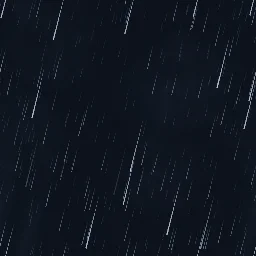 Seamless Rain Overlay
 Seamless Snowfall Loop
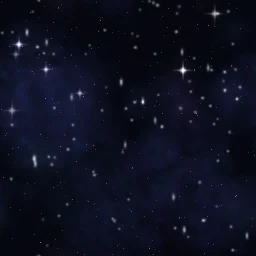 Tileable Starfield
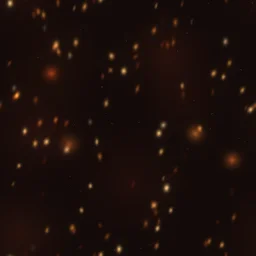 Drifting Embers Overlay
 Falling Leaves Overlay
 Cherry Blossom Petals
 Underwater Bubbles Loop
 Seamless Plexus Background
The quick way: start from the library
Open Seamless Rain Overlay and press Show tiled on the stage toolbar to watch it repeat 3 x 3 around itself. Or describe yours: build "a seamless tileable snowfall in three depths" with the agent (uses 1 build; your first one needs no account).
Learn it hands-on: the tiling lesson has you find the seams in a snowfall overlay with Show tiled, then fix them: Tile on, the vignette gone and the emitter one canvas wide.
Make any effect tile
- Open the effect and select Effect settings at the top of the Layers panel. Under Canvas, set Tile to Left and right, Top and bottom or Both. Rain and snow that cover the screen want Both; a strip that only scrolls sideways needs Left and right.
- Press Show tiled on the stage toolbar (the grid button next to the pixel grid). The canvas repeats 3 x 3 around itself, so any seam is easy to see while the effect plays.
- Read the notes under Tile. They name anything in this effect that will not repeat cleanly, such as a vignette, an emitter wider than the canvas or a fluid layer, and say how to fix it.
- Spawn across exactly one canvas. In All settings, set each emitter's Shape to Rect with Width and Height equal to the canvas, centred on it (X 256 and Y 256 on a 512 px canvas). A wider emitter folds its extra spawns back in and the edge bands get denser.
- Fade every layer in and out with Opacity over Life, so drops and flakes appear and vanish softly instead of popping at the start and end of their life.
- For an overlay, turn Transparent on under Canvas so the export has alpha. Press Export: the preview shows the frames repeated 2 x 2 (the Tiled button), and the Frame row says the whole canvas is kept, because a trimmed frame could not repeat edge to edge.
Depth and parallax
Weather looks flat when every drop is the same. The library overlays stack three or four depths in one tile: far layers small, slow and dim, near layers big, fast and few. Seamless Rain Overlay draws far rain 0.9 to 1.15 px wide falling at 620 to 700 px/s, mid rain at 880 to 980 px/s and near rain 2.4 to 3.2 px wide at 1250 to 1400 px/s, all with Draw as set to Line, over slow drifting mist. Seamless Snowfall Loop runs from specks of 2 to 3.5 px at 20 to 30 px/s up to out-of-focus flakes of 44 to 72 px, with Wiggle for the sway.
For parallax in the engine, export each depth as its own tile: hide the other layers with the eye button, export, and repeat, then scroll the far tile slowly and the near one fast. A tile that scrolls by itself should close its own loop. In Tileable Starfield every star moves at 128, 256 or 512 px/s on a 512 px canvas with a 4 s loop, exactly 1, 2 or 4 canvas heights, so each star is back where it started when the loop restarts.
What breaks a tile
- Vignette and CRT. Both darken the frame edges, so every tile shows its border. Radial chromatic aberration grows toward the edges too; switch it to the linear mode. The notes under Tile flag all three.
- Emitters bigger than the canvas. The extra spawns fold back in at the opposite edge and the edges get denser. Size the emitter to the canvas exactly.
- Pixel grids that do not divide the canvas. In pixel mode, or with a Pixelate or Scanlines filter, make the canvas a multiple of the pixel, block or line size so the grid lines up across the seam.
- Fluid layers. Simulated smoke stays inside the canvas and does not flow across the edge.
- Lossy video. MP4 and WebM encode each frame's edges on their own, so very dark, fine content can show a faint seam. PNG frames, spritesheets, APNG, WebP and GIF repeat exactly.
- Packed sheets. The Packed layout trims each frame, and only engines that read the frame offsets rebuild whole tiles. Use Grid, Row or Column for tiles.
Keep the tile small
A tile is stored once and drawn many times, so its own size is what costs memory. A 512 x 512 tile at 30 fps for 2 seconds is 60 frames, about 60 MB of uncompressed texture memory; a 256 x 256 tile at 15 fps is 30 frames and about 8 MB. Fast rain at 15 fps can strobe, which motion blur smooths out. The looping guide covers the time side of the loop.
Cover the screen with one tile
Every Tileable Backgrounds effect is free to open, recolour and export. Keep Show tiled on while you change it and any seam shows straight away.
Questions
Why does my tiled overlay show a seam?
Usually a filter that depends on the frame edge (vignette, CRT or radial chromatic aberration), an emitter wider or taller than the canvas, or a lossy MP4 or WebM export. The notes under Canvas > Tile name the cause for your effect, and Show tiled makes the seam visible on the stage.
Does tiling change how my effect moves?
No. Wrapping happens when frames are drawn, not in the simulation, so the motion and the perfect loop stay as they were. The one difference is that particles no longer bounce off a tiled canvas edge, because that edge is now a seam.
Which export should I use for a full-screen overlay?
A spritesheet or PNG frames repeat exactly and keep transparency, which suits engines. Keep the tile small, often 256 px, and the frame rate at 12 to 15 fps to save texture memory. Video files are small but lossy, so dark, fine content can show a faint seam.