Particle text and logo reveals for games
Make particles fly in and form a word, a logo or a sprite, hold it with a shimmer, then blow it away: title reveals, victory text, countdowns, coins flying to a counter and characters that turn to dust.
A particle reveal sends a cloud of particles to form a word or a logo, holds it for a beat, then lets it go: the Trapcode Form and Particular look from title sequences, and in games the victory banner, the level name, the countdown and the coins that fly into the HUD. The Assemble module does this on any emitter. Each particle gets its own spot in the shape and flies there with an ease you choose. The shape can be text in any studio font, an image or sprite, the line of a path layer, or a single point. Run it backwards and a sprite turns to dust.
 Particle Text Reveal
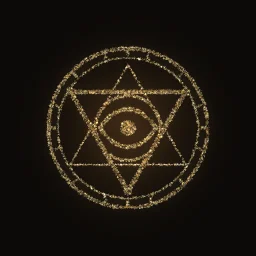 Logo Assemble From Sparks
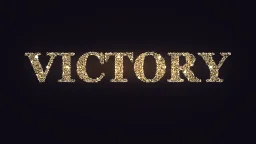 Victory Text Particles
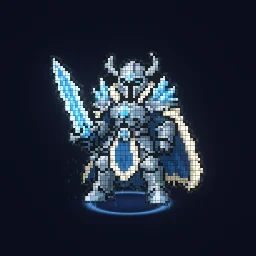 Character Materialize
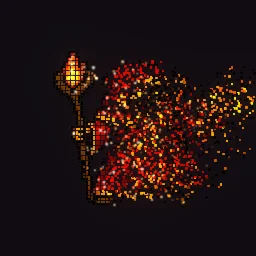 Character Disintegrate To Dust
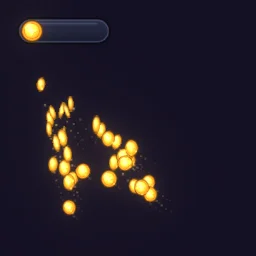 Coins Fly To Counter
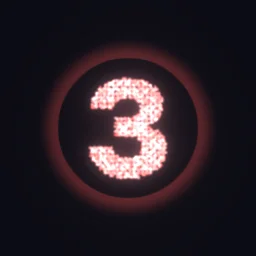 Particle Countdown 3 2 1 GO
 Game Title Logo Reveal
The quick way: start from the library
Open Particle Text Reveal and change the text in its Assemble module, or describe yours: build "gold sparks that form SKY RUINS, then blow away" with the agent (uses 1 build; your first one needs no account).
Learn it hands-on: the Assemble lesson has you form a word from drifting motes yourself, type your own text, write it on from the left and blow it away on the wind.
Build a reveal step by step
- Select an emitter, or press A on the stage to add one, and give it plenty of particles: switch the Inspector to All settings and add a burst of a few thousand under Bursts. Max particles is 5000 by default, so raise it for a bigger burst.
- Under Behaviour, press Add module and choose Assemble. Set Form to Text, Image, Path or Point. Type the text, or click Shape to pick a built-in shape or upload your logo. Scale sets the size: for text, 1 is 64 px letters; for an image, 1 is its own size.
- Place it. Centre set to Emitter keeps the shape on the emitter and moves it with the emitter; Point puts it anywhere, and you drag the crosshair on the stage.
- Time it. With Timing on Life, Gather at, Formed at and Let go at are shares of each particle's life. With Timing on Timeline they are seconds on the effect timeline, so every particle of one burst lands on the same beat.
- Write it on. Stagger spreads the start times and Stagger order picks who goes first: Left writes text from left to right, Bottom builds a character from the feet up, Edge fills a logo from the outside in.
- Shape the flight and the hold. Ease sets how they arrive (Out settles softly, Back overshoots once, Spring wobbles into place), Wander adds noisy detours on the way and Shimmer keeps the formed shape alive.
- Pick a Release: Explode, Scatter, Wind, Fall, Return or Hold, with Push for the speed and Gravity after for falling arcs.
Numbers from the library
- Particle Text Reveal bursts 3800 motes into REVEAL at Scale 1.6 (letters about 100 px tall) on a 640 x 360 canvas, plus 1300 on a second layer with Outline only on for crisp letter edges. The motes are formed by 18 percent of their life and let go at 58 percent, with a 0.22 Stagger from the Left and a Wind release.
- Logo Assemble From Sparks uses Timeline timing: formed at 0.55 s and let go at 2.6 s, with a Back ease (Overshoot 0.45), Edge order, and an Explode release with Gravity after at 320 for falling embers.
- Character Materialize rebuilds a pixel-art hero exactly: one square pixel particle per sprite pixel (2475 of them), at Size 5 with Scale 5 and Picture colour at 1, so each particle takes the colour of the pixel it lands on. It builds from the Bottom.
- Particle Countdown 3 2 1 GO gives each number its own layer, each gathering one second after the last. One Assemble module drives one layer, so a morph from one shape to another needs two layers.
Disintegrate and condense
Set Start at to Target and the particles are born on their spots instead of flying in: the shape is whole from the first frame and only holds and lets go. With a Wind release and a stagger from the Right, a sprite sweeps away as dust, as in Character Disintegrate To Dust. Add Scatter and they are born up to that many pixels from their spots and gather in, so the shape condenses out of a cloud.
Tips
- Spawn where it reads. Particles wait at the emitter until their turn, so spawn them somewhere that looks intended: an off-screen ring, a ring at the feet, a fountain from below.
- Coins to a counter. Set Form to Point at the HUD corner with Ease on In, so each coin is pulled in faster and faster, as in Coins Fly To Counter.
- A second layer for edges. Particles on the outlines (Outline only) keep small text readable while the filled layer gives it body.
- Your own lettering. Text uses the studio fonts (sans, serif, mono and pixel). For a logo in your own typeface, export it as a transparent PNG and use Form Image.
Reveal your own title
Open a reveal and type your own text, or upload your logo. If you would rather describe it, a free account gets 20 agent builds to start.
Questions
Can I use my own logo?
Yes. Set Form to Image, click Shape and upload a transparent PNG. Turn Picture colour up to 1 and the particles take the logo's colours where they land.
How many particles does a text reveal need?
Enough to fill the letters at your particle size: about 3000 to 4000 for a word 100 px tall with 3 to 5 px particles, plus about 1000 on the outlines. Fewer, larger particles read better when the text is small on screen.
How do I make a character disintegrate into dust?
Use Form Image with your sprite, set Start at to Target so the particles begin in place, set Picture colour to 1, and choose a Wind release with a stagger from one side.