How to make particle sprites for games: glows, flares and sparks
Make your own particle sprites for game effects: soft glows, lens flares, shock rings, twinkles, smoke puffs and toon shapes from gradients, noise and symmetry, still or as looping flipbooks, at 64 to 256 px.
Most particle effects are built from a few small textures: a soft glow dot, a ring, a four-point twinkle, a streak, a smoke puff. Their edges decide how the whole effect looks. A glow that ends in a hard rim reads as a disc, and a smoke puff with no noise reads as a ball. The Sprite Maker in ParticleFX Studio makes these textures from settings instead of paint: up to four layers of shape, gradient, noise and glow, with symmetry for flares and mandalas, a toon switch for cel-shaded shapes, and looping flipbooks for churning plasma or fire. The same settings and seed always make the same pixels, and the settings stay with the sprite, so you can change it later.

The quick way: open one and look inside
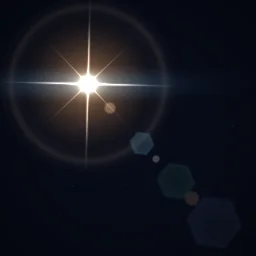
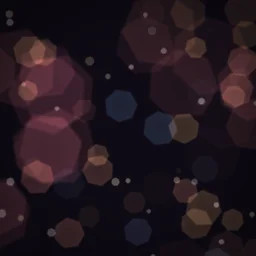
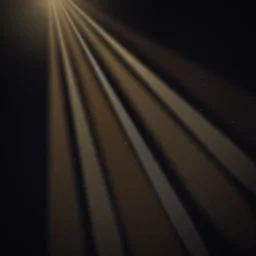
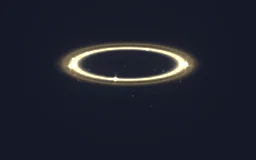
Open Lens Flare: every sprite in it, the soft glow, the halo ring, the hexagon ghosts, the anamorphic streak and the rays, was made in the Sprite Maker. Select a layer, open Looks like and click Make a sprite to see the settings of the sprite it uses.
Learn it hands-on: the Sprite Maker lesson has you give an orb's plain sparks a Twinkle sprite, then reopen it and turn it into an 8-frame Pulse flipbook with Update sprite.
Make a sprite
- Select an emitter or object layer, open Looks like in the Inspector and click Make a sprite. Or press the brush button (Make a sprite) in the Assets panel.
- Click a starting point under Start from: Soft Glow, Twinkle, Shock Ring, Lens Flare, Smoke Puff, Energy Orb, Speed Streak, Slash Arc, Toon Flame, Rune Circle, Toon Puff, Fireball Loop, Bubble, Hit Spark, Kaleido Mandala or Droplet.
- Shape each layer, up to four, bottom first: a Shape (circle, ring, star, polygon, spark or cross, streak or line, crescent or slash, droplet, square) with Size and Softness; a Gradient (Radial, Edge or Linear) of 2 to 4 Colours with alpha; and a Blend of Normal, Add or Erase against the layers below.
- Break up the edges with noise. Mask eats into the alpha, Warp bends the shape (flames, wisps), Type picks Smooth, Fbm or Ridged (veins and electric lines), and Erode edges eats in from the outline for puffy smoke. Randomise picks a new noise pattern.
- Add symmetry and light: Copies repeats the layer around the centre for flares and mandalas, with Offset and Mirror, and Glow adds a soft halo in its Glow colour.
- Under Whole sprite, turn Toon on for 2 or 3 hard colour bands and an ink outline. Under Flipbook, set Frames to 4, 8, 12 or 16 and Animate to Evolve (the noise churns), Spin or Pulse for a sprite that loops by itself.
- Choose the size, 64, 128 or 256 px, check the sprite on the Dark, Checker and Light backgrounds, and click Use sprite. It is added to the effect and used by that layer in one undo step.
How the starting points are built
| Sprite | Start from | What makes it work |
|---|---|---|
| Soft glow dot | Soft Glow | One white circle with Softness 1 and a gradient that fades to 0 alpha at the edge |
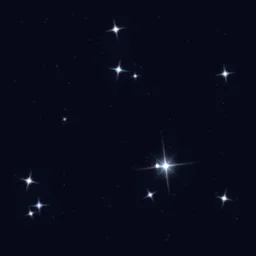
| Four-point twinkle | Twinkle | Two 4-point sparks, one turned 45 degrees and smaller, over a small glow on Add |
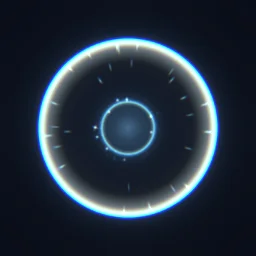
| Shock ring | Shock Ring | A ring with an Edge gradient, high Softness and a little Glow |
| Smoke puff | Smoke Puff | Fbm noise with Mask 0.65, Erode edges and some Warp |
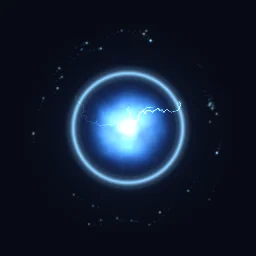
| Fire or plasma loop | Fireball Loop, Energy Orb | Noise Mask and Warp over a warm or cool gradient; Fireball Loop is an 8-frame flipbook on Evolve |
| Cartoon puff | Toon Puff | A circle plus a smaller one with Copies 8 for the lobes, Toon on with 2 bands and an ink outline |
| Rune circle | Rune Circle | Two thin rings and a six-point star, with an Erase layer cutting the star's middle |
Tips
- Make it white. White sprites take the particle colour (Tint image on), so one soft glow serves every effect and Colour over Life can cool it from white to red. Coloured starting points such as Energy Orb and the toon shapes are meant to be used as they are.
- Fade to nothing at the edge. The last gradient stop should reach 0 alpha, or overlapping particles show hard discs. Check on the Light and Checker backgrounds too: a glow that looks soft on dark can show its edge on light.
- Size it for its use. 64 px for small sparks and dust, 128 px for most glows and puffs, 256 px for rings, rays and beams that are drawn large. The library's halo and shock rings are 256 px; its glows and twinkles are 128 px.
- Mind flipbook weight. A 128 px soft glow is about 3 KB as a PNG. The 12-frame, 128 px plasma flipbook in Glowing Energy Orb is about 155 KB, and a 256 px, 16-frame noisy sprite is around 1 MB. The dialog shows the PNG size as you work.
- Play flipbooks in step with the loop. In Glowing Energy Orb the 12 frames play at a Flipbook fps of 6, which fills its 2 s loop exactly. On particles, set Flipbook under Appearance.
Change it later
A made sprite is an ordinary PNG image in the effect, so it exports like any other, and its settings travel with it. To change it, open Make a sprite again from a layer that uses it, or choose Edit in Sprite Maker from the sprite's menu in the Assets panel. Update sprite changes every layer that uses it; Save as new keeps the original. Share links that cannot carry images send the settings instead, a few hundred bytes, and the sprite is made again when the link opens. For using glowing sprites in an engine, see glow effects without a black box.
Make the sprite your effect is missing
Open a Glows & Flares effect to see how its sprites are built, or make one from a starting point in a few clicks.
Questions
What size should a particle sprite be?
64 px for small sparks and dust, 128 px for most glows, twinkles and puffs, and 256 px for rings, rays and beams that are drawn large. A sprite drawn much bigger than its size goes soft, and one far bigger than it is ever drawn wastes memory.
Can I edit a made sprite after using it?
Yes. Its settings are saved with it. Choose Edit in Sprite Maker from its menu in the Assets panel, or open Make a sprite from a layer that uses it, then click Update sprite to change it everywhere it is used.
Can a particle sprite be animated?
Yes. Set Frames to 4, 8, 12 or 16 and Animate to Evolve, Spin or Pulse. The frames loop with no jump, and particles play them with the Flipbook setting under Appearance.