How to make flipbook particles in Roblox Studio
Make flipbook particles in Roblox Studio step by step: upload the sheet, set FlipbookLayout, pick FlipbookMode Loop, OneShot, PingPong or Random, set the frame rate, use custom grids, and fix the common problems.
A flipbook particle is a ParticleEmitter whose texture is a grid of frames. Each particle plays the frames while it lives, so a puff of smoke can roll, a spark can flicker and a whole explosion can play out on one particle. Everything is set in the emitter's Properties; no plugin is needed.
Two ways games use flipbooks
- Many particles, each animating. The classic use: an emitter with a Rate above 0 throws out many particles, and each one plays a short animation, such as a smoke puff that rolls or a flame that flickers. Speed, SpreadAngle and the Size and Transparency curves still move and fade them.
- One particle, the whole effect. A finished effect (an explosion, a slash, an aura) is drawn into the frames, and one particle that stays still plays it from start to finish. This is how every ParticleFX effect downloads: the result looks exactly as designed, and it is one particle however busy the effect is.
These are ready-made flipbooks of the second kind. Press ROBLOX on any of their pages for the PNG; the page shows the FlipbookLayout and Lifetime to use.
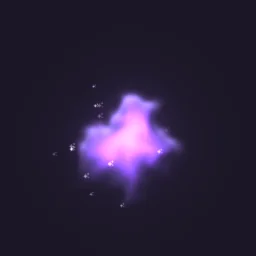 Teleport Smoke Puff
 Smoke poof
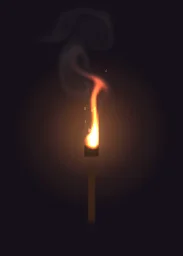 Smoking Torch
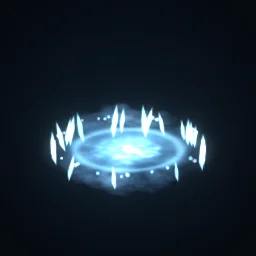 Frost Nova
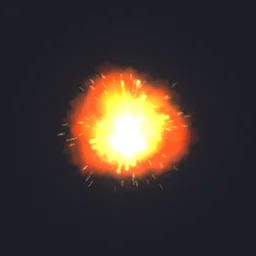 Midair Fireball Explosion
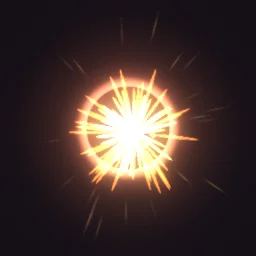 Critical Hit
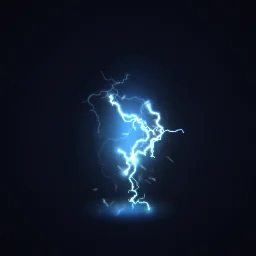 Electrified
 Coin Pickup
Set up a flipbook step by step
- Make or download a flipbook PNG: a square image split into a 2x2, 4x4 or 8x8 grid, with the frames running row by row from the top left. The flipbook templates are blank grids to draw in, and every library effect downloads as one with the ROBLOX button.
- In Studio, open View > Asset Manager, click Import and choose the PNG. When it has uploaded, right-click it and choose Copy Asset ID.
- Insert a Part, add an Attachment to it and a ParticleEmitter to the Attachment, and set Texture to
rbxassetid://followed by the id. - Set FlipbookLayout to the grid of your image: Grid2x2, Grid4x4 or Grid8x8. The texture's size must divide exactly into that grid, or the emitter shows a warning.
- Pick a FlipbookMode (the table below). For Loop, PingPong and Random, set FlipbookFramerate, up to 30 frames a second.
- Press Play or Run and adjust Lifetime, Size and Rate until it reads well from your game's camera.
| FlipbookMode | What it does | Use it for |
|---|---|---|
| Loop | Plays the frames in order and starts again, at FlipbookFramerate, for as long as the particle lives | Flickering flames, sparkles, rolling smoke puffs |
| OneShot | Plays the frames once, spread evenly over the particle's Lifetime. FlipbookFramerate is not used | Whole effects: explosions, hits, a puff that forms and fades |
| PingPong | Plays forward, then backward, and repeats | Pulsing glows and breathing auras |
| Random | Moves between frames in a random order, crossfading from one to the next | Slow, natural shimmer: stars, embers, magic dust |
Frame rate and timing
- OneShot: the whole flipbook plays once over Lifetime, so a 64-frame explosion with a Lifetime of 1.6 s plays at 40 frames a second. Set both Lifetime numbers the same, or each particle plays at a different speed.
- Loop and PingPong: FlipbookFramerate sets the speed, up to 30 frames a second. A range such as 12 to 18 gives each particle its own speed, so a cloud of them does not flicker in step.
- FlipbookStartRandom: starts each particle on a random frame. With FlipbookFramerate at 0, each particle shows one random frame and holds it, which turns a flipbook into a set of variations: four rocks, four leaves or four sparks in one texture.
- FlipbookBlendFrames: crossfades from frame to frame. Leave it on for soft effects with few frames; turn it off for pixel art and crisp cartoon frames.
Custom grids
FlipbookLayout Custom reads a grid you define with FlipbookSizeX (columns) and FlipbookSizeY (rows), for sheets that are not 2x2, 4x4 or 8x8. The texture still has to divide exactly into that grid. The three standard grids remain the safe choice for flipbooks you share or reuse.
Build one from a script
For a one-particle effect, set Rate to 0 and emit from code, so it plays exactly when your game says so. This builds the whole emitter from a script, which is handy for effects you create at run time:
-- A Script inside a part: builds a flipbook emitter and plays it once.
-- The names match the ready model (Attachment.Flipbook), so the other scripts on these pages work with it.
local attachment = Instance.new("Attachment")
attachment.Parent = script.Parent

local emitter = Instance.new("ParticleEmitter")
emitter.Name = "Flipbook"
emitter.Texture = "rbxassetid://123456789" -- your uploaded flipbook
emitter.FlipbookLayout = Enum.ParticleFlipbookLayout.Grid8x8
emitter.FlipbookMode = Enum.ParticleFlipbookMode.OneShot
emitter.Lifetime = NumberRange.new(1.6) -- the effect's length
emitter.Rate = 0
emitter.Speed = NumberRange.new(0)
emitter.Size = NumberSequence.new(6)
emitter.LightEmission = 1 -- 0 for smoke and anything dark
emitter.LightInfluence = 0
emitter.LockedToPart = true
emitter.Parent = attachment

emitter:Emit(1)
For a looping effect, emit again every Lifetime; the loop script is on the Roblox setup page, with every other property a one-particle flipbook needs. For many animated particles, give the emitter a Rate instead and let it run.
Common problems
- The whole sheet shows on each particle. FlipbookLayout is still None. Set it to the grid of the image.
- It plays too fast or too slow. In OneShot, change Lifetime; FlipbookFramerate does nothing in that mode.
- Neighbouring frames bleed in at a distance. Leave a transparent margin round each frame, as the templates and the library flipbooks do, so the smaller versions of the texture Roblox draws far away do not mix frames.
- A black square round the effect. The PNG has no transparency. Save it with an alpha channel. With LightEmission 1 black adds nothing, which hides the square for glowing effects only.
- The texture does not show. Roblox reviews new uploads before they appear in game. Paste the id into Texture in Properties.
- Several copies overlap. The emitter is still emitting on its own. For a one-particle effect, set Rate to 0 and call Clear() before each Emit(1).
The flipbook PNG is free: the ROBLOX button on every effect page needs no account, and a free account can also export it from the studio (3 effects a day) with the grid and texture size of your choice. The ready model, a .rbxmx with the emitter set up and a script that plays it, plus UIFlipbook.luau for UI, comes with any plan, from $7.99 a month.
Get it into your game
Every setting and both ways in, free PNG or ready model, are on the Roblox setup page. More picks by genre are on Free Roblox VFX, and any effect can be changed in the studio before you export it.
Questions
How do I make a flipbook particle in Roblox?
Upload a square PNG split into a 2x2, 4x4 or 8x8 grid, set it as a ParticleEmitter's Texture, set FlipbookLayout to the matching grid, then choose a FlipbookMode and, for Loop or PingPong, a FlipbookFramerate.
What is the difference between Loop and OneShot?
Loop repeats the frames at FlipbookFramerate for as long as the particle lives. OneShot plays them once, spread evenly over the particle's Lifetime, so Lifetime sets the speed and FlipbookFramerate is ignored.
Can a Roblox flipbook have more than 64 frames?
The standard layouts stop at 8x8, which is 64 frames. FlipbookLayout Custom takes your own column and row counts with FlipbookSizeX and FlipbookSizeY, but every frame then gets fewer pixels of the texture.
Can I use these effects in a game that earns Robux?
Yes. Exported effects, including ones started from the library, may be used in any project, commercial games included, with no credit required. Reselling the library itself as an effect pack is not allowed.